- Home
- Bookkeeping Courses
- Excel Bookkeeping Lessons
Excel Bookkeeping Lessons
Taught From a Canadian Perspective
Sample Templates of Bookkeeping Workpapers
This page is archived as the course is no longer available.
Learn how to setup Excel bookkeeping workpapers to analyze your business data in 10 easy lessons.
Michaela Ditchfield, CPB
MD Accounting Resources
partnered with
The Institute of Professional Bookkeepers of Canada
to bring a 10 lesson webinar series using Microsoft Excel 2010 to its members. Bookkeeping-Essentials is pleased that Michaela is now able to make this practical "hands on" course available to you.
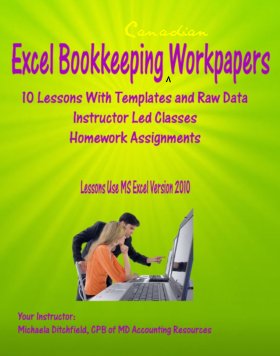
This course is delivered over a 10 week period. Each week, you will receive a link to download your lesson and other course materials directly from the instructor. Skip reading and purchase Excel Bookkeeping Workpapers now.
Is This Course For You?
Excel Bookkeeping Lessons is approximately 15 hours of recorded webinar instruction by a live qualified instructor. The 90 minute lessons will be delivered over a 10 week period. You can access the lessons 24/7 from the convenience of your home or office.
The Excel version used during the webinars is Microsoft Excel 2010 therefore you must have your own access to the software to take full advantage of the course. Those with the 2007 version will still be able to follow along but there are some differences. Any other version is not compatible with these lessons.
Each of the 10 Microsoft Excel bookkeeping workpaper lessons, taught from a Canadian perspective, are structured as follows:
- You receive a recording of each lesson to download (it is not streamed) for your own personal use; to be viewed as many times as you want. It may not be sold or used for commercial purposes.
- Each lesson is 60 minutes in length followed by up to 30 minutes of questions and answers (Q&A).
- Included with each lesson is a pre-formatted Excel workbook (in MS Excel version 2010) with pre-filled with Canadian raw data samples for you to follow and practice "in class" as the instructor walks you through the lesson using raw data.
- Following each lesson, homework will be assigned by email to practice what you learned along with the answer key to the assignment.
- After each lesson, you are emailed a pdf file of written responses to the Q&A asked during the lesson, prepared by the instructor.
- BONUS - Access to the instructor by email for one week following the lesson when you purchase all ten lessons.
As each lesson builds upon the other, it is to your benefit to complete each homework assignment prior to the next lesson.
What Will You Learn In This Course?
You will learn how Excel can be used to develop bookkeeping workpapers to aid in the analysis of company records. This course will provide hands on sample raw data and the following bookkeeping workpaper templates:
- hyperlinked summary of workpapers and checklists for clients, workpaper files, management reports, aged receivable past due, gross profit, top 10 and bottom 10 customers, sales by item, sales by revenue centre, sales by salesperson, top 10 sales items, budgets and forecasts, and financial statements
- a GST/HST (Canadian sales tax) workpaper
- Canadian payroll workpapers with examples highlighting employment status, group health benefits, and proration of vacation pay for mid year hires or termination of employees
- a loan payment workpaper
- various workpapers showing how to use your customer lists for data mining
- various workpapers including examples of how to calculate and rank profit on the sale of inventory
- how to create a workpaper that analyzes salesperson performance including which salesperson created the most profit for the business
- how to create a comparative income statement with visual trending embedded in the workpaper for powerful management presentations
Excel Bookkeeping Course Curriculum
Taught From a Canadian Perspective
Lesson 1 – Excel Bookkeeping Workpaper Basics
This first of ten lessons covers some basics.But don’t fret it won’t cover how to create a spreadsheet but rather go into some of the settings that can make your life a little easier by modifying some settings to your specific needs. The lesson will touch on the backstage, customizing your ribbon, modifying the quick access toolbar, and other hints & tips to speed up your daily work in MS Excel 2010.
Lesson 2 – Excel Bookkeeping Workpaper Security
This second lesson is intended to show you how to secure your work from unwanted modifications (intended or accidental), locking cells or just protecting one sheet, be aware of macros and ActiveX controls, and finally how to set up Hyperlinks so you can move around without ending up in the wrong place.
Lesson 3 – Functions and Formulas Part 1
Ever felt a little lost when it comes to some of the basic functions? Like, how do they do that sum when data is filtered and be correct each and every time? And how do you get a sum total without actually creating a function? And what is VLOOKUP anyway?
Lesson 4 – Functions and Formulas Part 2
If only you knew how to best find out the solution to a set of scenarios! For example, you want to create some cost analysis where full time employees are entitled to group benefits but those that work part time don’t. How do you get to the numbers without having to separate the employees? These are scenarios where the "IF” or "SUMIF” functions come in handy. And have you ever struggled with some pesky little variances? You know that it must have something to do with rounding, but how do you resolve this? If any of that sounds familiar, then this session is for you.
Lesson 5 - Functions and Formulas Part 3
Who hasn’t had to deal with payment plans?! Ever heard of the terms "future value”, "payment amount”, and similar? In this lesson learn how to apply the following functions: NPV, PMT, NPER, FV. Did you know that you can calculate the number of days between two dates? Find out how during this session. And last but not least, have you ever been faced with text that needs to be "cleaned up” first before you can manipulate the data? This is your chance to find out how to apply text functions such as LEFT, RIGHT, PROPER, and TRIM, instead of manually retyping or using the "cut and copy”.
Lesson 6 – Conditional Formatting and Sparklines
Lesson 6 will show you how to make data sets easier to read. A picture is worth a thousand words, right?! Why not apply some conditional formatting or Sparkline to make the data more visual to the reader? Impress your readers with easy to understand data by doing so. Even apply some of these during a presentation to quickly emphasize different information.
Lesson 7 – Using Tables and Charts for Excel Bookkeeping Workpapers
Ever find that the data you created makes sense but needs a little sprucing up? Learn how to use the Table Tools. Need to sort or filter your data in a specific manner, maybe find the top 10 or bottom 10 performers? You can do this easily in a Table. Then want to take the data and show it in a Chart within your sheet or on a separate sheet? Lesson 7 shows how to do this using a variety of layouts and style.
Lesson 8 - Using Macros in Excel Bookkeeping Workpapers
Need to find an easier way of doing repetitive work. Macros might just be the solution for you. How to create them and reuse them in an active file or for all files will be covered during this lesson.
Lesson 9 – Using Pivot Tables in Excel Bookkeeping Workpapers
We analyze data pretty much every day as a bookkeeper. But sometimes the data is just overwhelming and not very easy to handle, unless you know how to use pivot tables. A pivot table allows you to take a large amount of information and analyze different aspects without changing or reworking the original information. Once the data is in a pivot table you can change the focus of your analysis the way you need it with just a few clicks. Lesson 9 will show you how this is done.
Lesson 10 – Putting Your Excel Bookkeeping Workpapers Together
Financial Statements, Budgets & Forecasts, Monthly Working Files, Management Reports, the information to gather seems overwhelming. Learn how to create all these using all you learned in the previous 9 lessons. Push them out to readers via e-mail in MS Excel or PDF. This last lesson shows you how to put it all together and then reuse what you created over and over again.
Click here to purchase Excel Bookkeeping Workpapers NOW.

Purchase of Single Lesson Guarantee
If you are not absolutely satisfied with your single purchase lesson, I will gladly return your money with no questions asked if requested (to Bookkeeping-Essentials.com) within 30 days of purchase. This is a RISK FREE offer to you.
Ten Lesson Guarantee
If you are not absolutely satisfied after taking your first lesson, I will gladly return your money with no questions asked if requested before delivery of lesson two. If you are dissatified at anytime throughout the course, I will gladly refund the portion of the lessons not received. For example, if you decide after lesson three but prior to receiving lesson four that this course is not for you, upon request to Bookkeeping-Essentials.com you would receive a refund of $279.30 ($399 / 10 lessons x 7 lessons remaining).
Your Purchase Options
A Single Lesson - $45 CAD
1 hour webcast plus up to 30 minutes Q&A
10 Lesson Series - $399 CAD*
10 hours of webcasts plus up to 5 hours Q&A
*10 Lesson Purchase Includes a BONUS - Access to the instructor by email for one week following the lesson. Course is delivered over a 10 week period.
Here's what will happen when you click on the Buy Now Button.
You will be asked for your credit card information by PayPal. PayPal does not share your personal information ... so it is safe. I will not have access to your financial information, so your purchase is completely confidential.
Your transaction will be processed under Lakeshore Bookkeeping Services. After you complete your purchase, you will be sent to a page that will explain how the course is delivered and how to download your course materials.
After you have made your purchase, PayPal shows you your purchase details. You need to click on the Return to Lakeshore Bookkeeping link. This will take you to the page where you can ask your question(s).
If you muck up ... and for some strange reason don't get to the instructions page, just send me note through my contact page. I will verify that I received your payment and forward you the link to the instructions page.
P.S. You must have cookies turned on for the PayPal button to work ... I discovered this the hard way. If your cookies are not turned on, you will get a "Sorry" page instead.